One website
1 month
₩10,000
for one month
One-time term
- Your myRigel subdomain
- All editor blocks
- Edit and update anytime
- Dashboard access
Renew manually after one month.
Payments coming soon

Pricing
Create your page. Choose a term. Keep your website online.
One website
₩10,000
for one month
One-time term
Renew manually after one month.
One website
₩30,000
for three months
₩10,000 per month
₩10,000 per month. No discount. Renew manually after three months.
One website
₩10,000
per month
Automatic renewal
Renews monthly until cancelled. Cancellation stops future renewals.
Per website · Preliminary base rates. Final totals will be confirmed before checkout. Payments are not enabled yet.
View subscription detailsInstructions are provided with each image. Click on an image to view them.

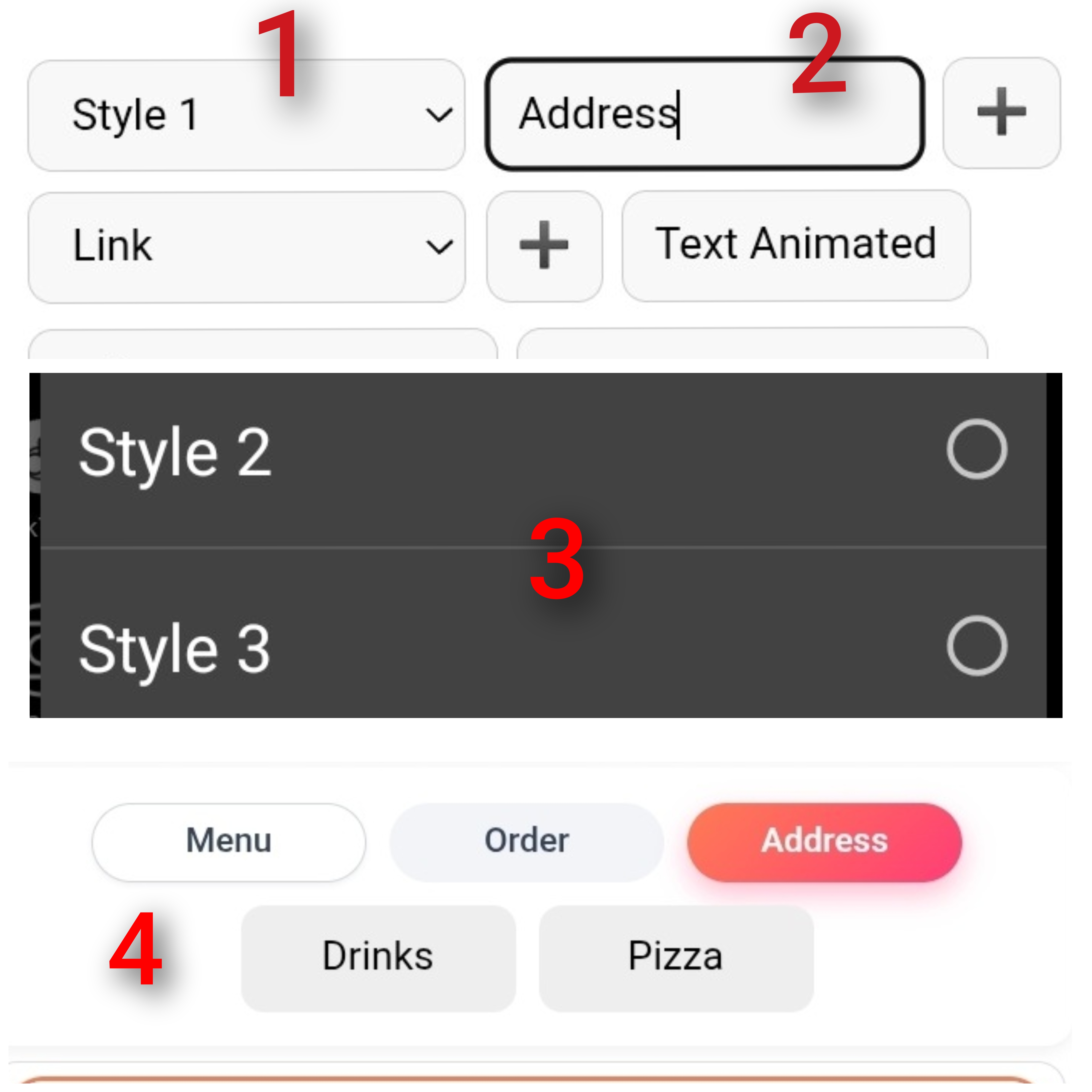
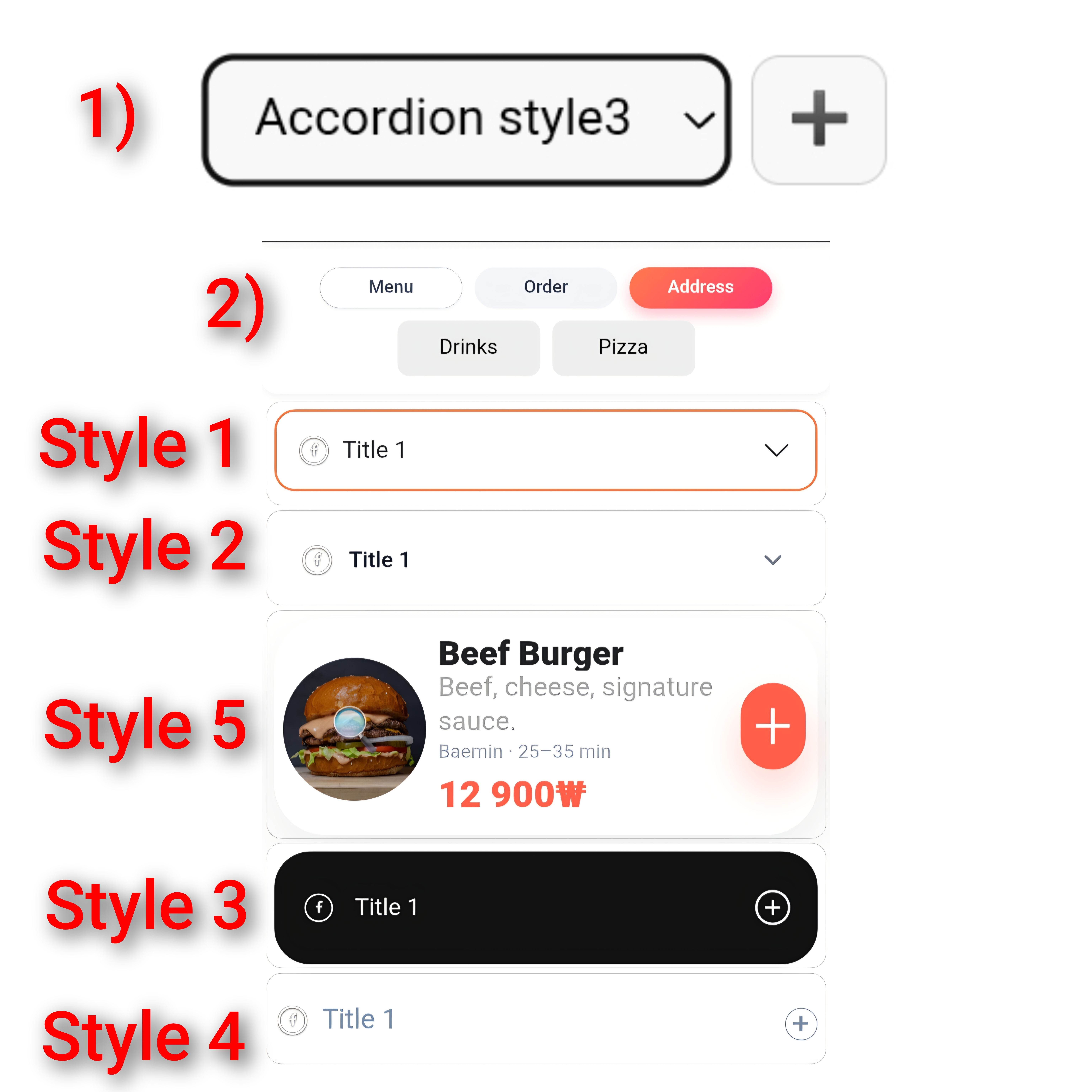
You can create multiple tags and assign a specific number of accordions to each tag.
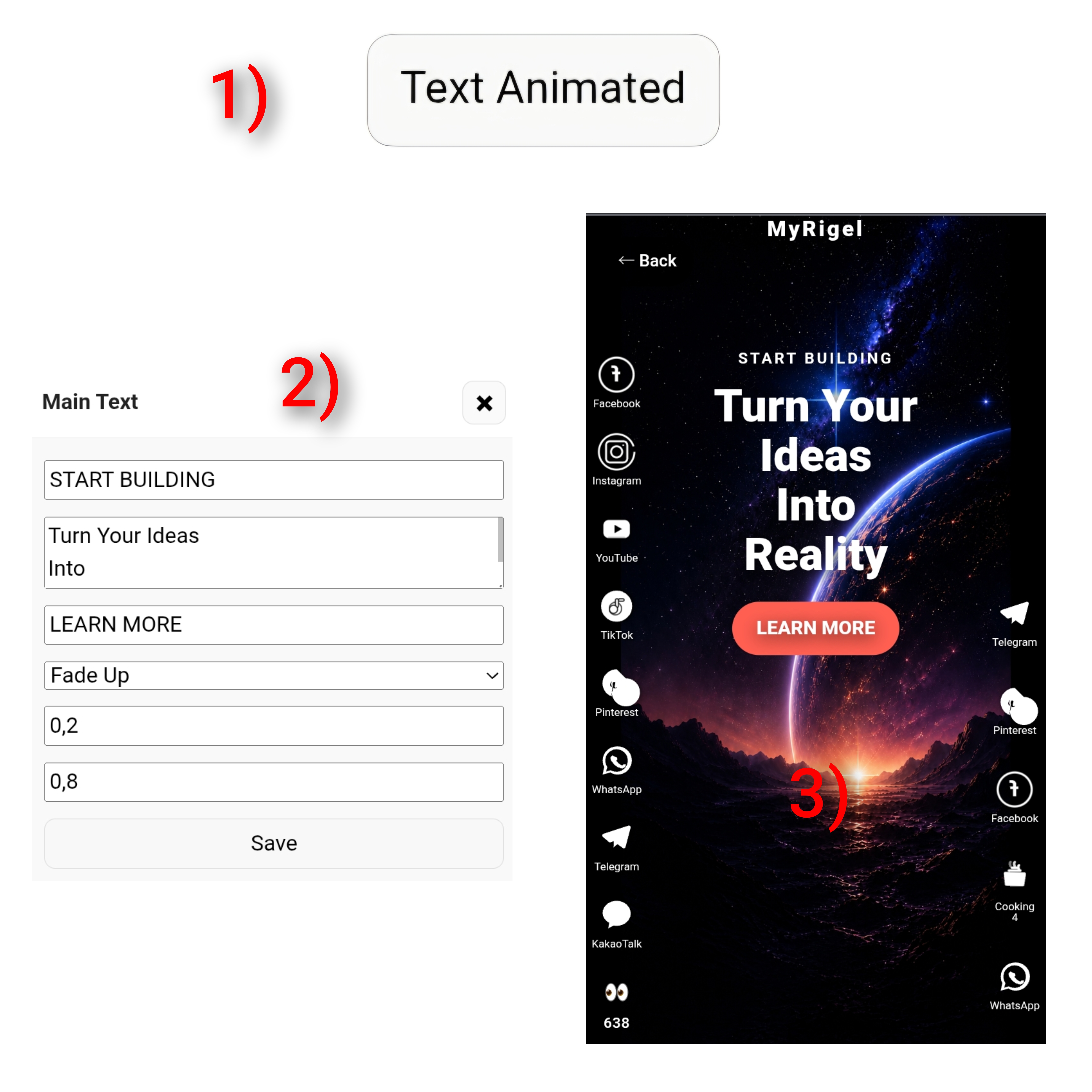
Create your own animated text. The animation will play when visitors open the website you created.
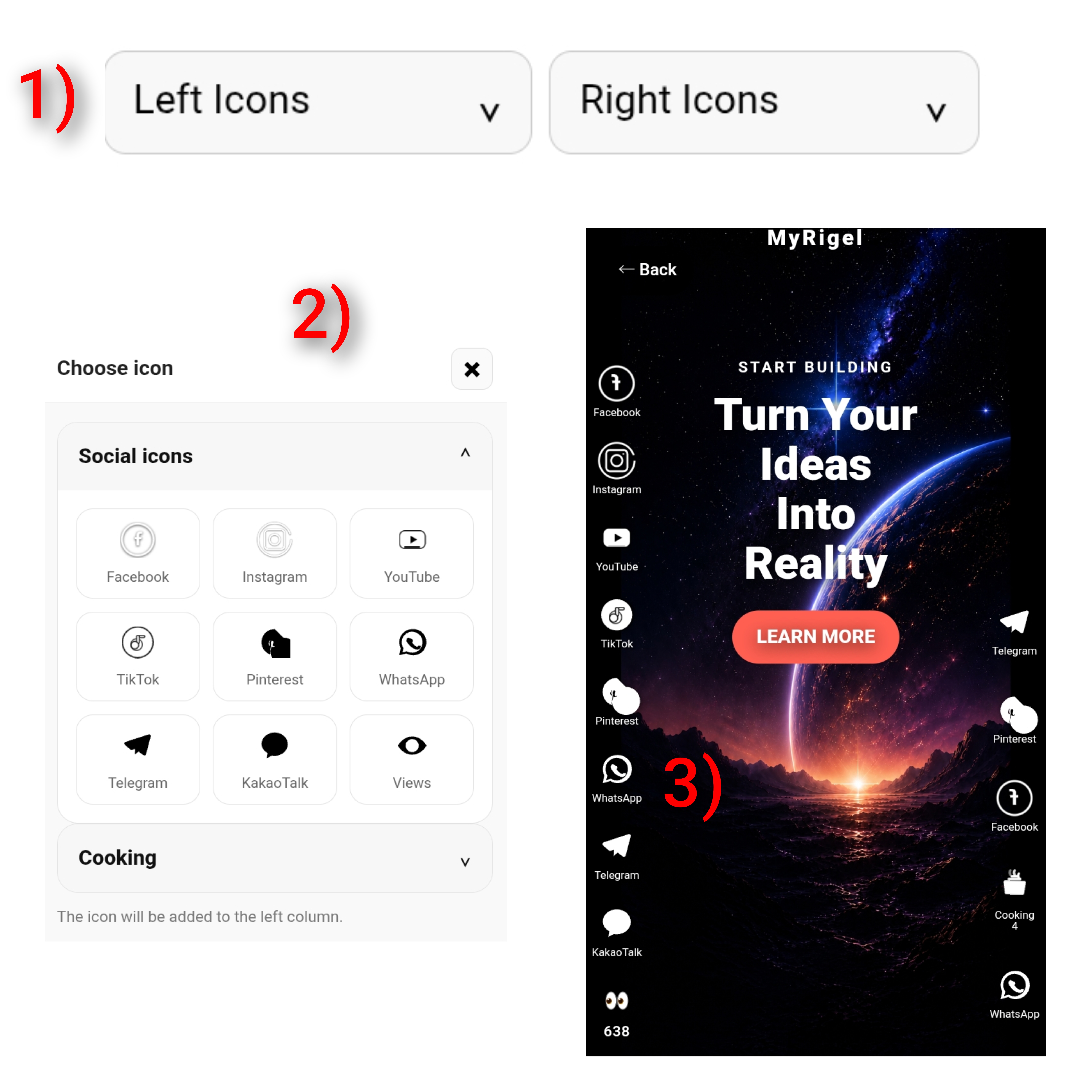
Add animated icons to the main page of your website. Place them in the left or right column and set a link to where you want visitors to go when they click the icon.
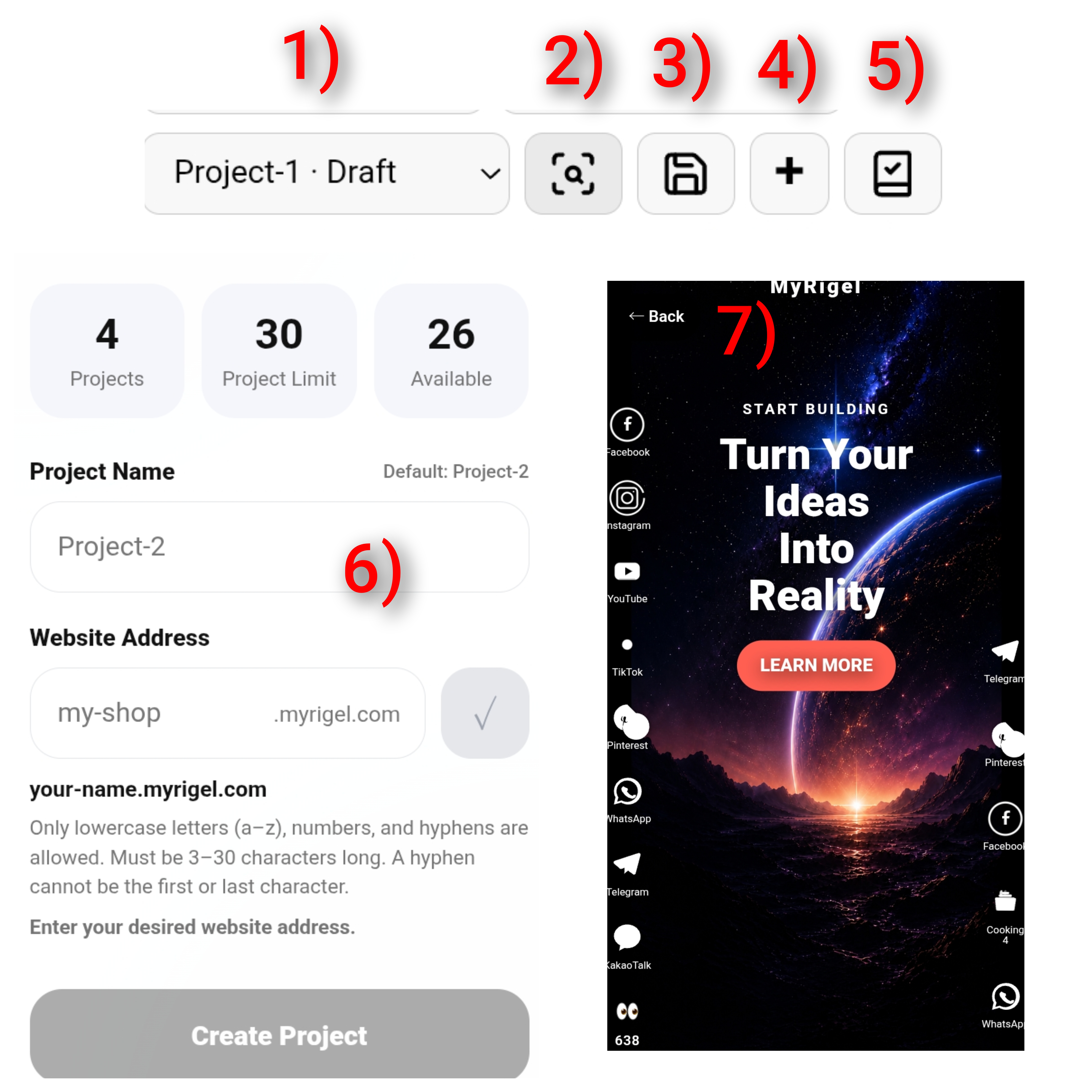
1) Your Projects — View and manage all your projects. 2) Website Preview — Preview how your website will look when published. 3) Save — Click Save after making changes to keep your latest edits. 4) Add New Project — Create a new project, enter a project name, and choose a subdomain. 5) Publish — Publish your website by selecting and paying for the appropriate plan.
Create a professional website without coding. Everything is controlled visually, directly from your phone or computer.
 Simple. Fast. No code.
CEO
Simple. Fast. No code.
CEO
Publish your project on your own MyRigel subdomain and share your website with customers instantly.
 BUILT FOR EVERYONE
CEO
BUILT FOR EVERYONE
CEO
Build product and food pages, accept orders, connect payment solutions and integrate delivery services.
 SELL & DELIVER
CEO
SELL & DELIVER
CEO
Manage your projects in one place, update content anytime and keep your website online with a simple subscription.
 CREATE. PUBLISH. GROW
CEO
CREATE. PUBLISH. GROW
CEO
경기도 안성시 대덕면 중앙대학로 113, 204호
우편번호: 17546
사업자등록번호: 828-11-02440
회사명: 깁스터레스